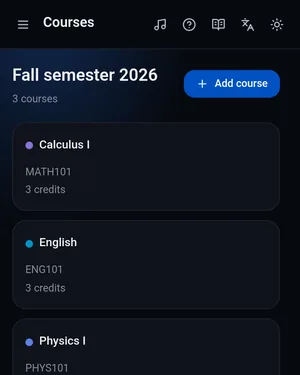
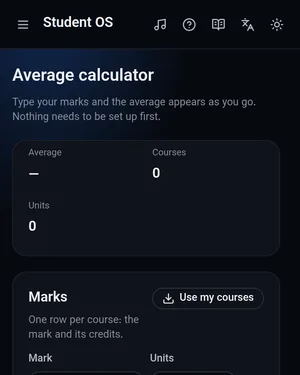
Term and credits
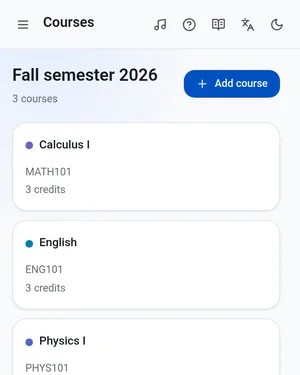
Create the term; add courses with a name, code, credit count and lecturer.
Built for Iranian students · nothing to install
Courses, weekly timetable, coursework, exams and topics in one place. Student OS builds a study plan from them, counts the hours you actually study, and shows you where you really stand — with a Jalali calendar, in any browser.
Today's path
2 of 5
An example Saturday. The app builds yours from your own courses and exams.
Hardly anyone wrecks a semester through laziness. A semester usually goes wrong because until exam week you cannot see how far behind you are. Three courses are going fine and one you have not touched in two months — and you find out on the day there is no time left.
A to-do list does not fix that. A long list just presents the same anxiety more tidily. What you need is the answer to one simple question: if I sit down right now, what should I study?
That is what Student OS is for. You enter your semester once — courses, exams, topics — and from then on keeping it straight is the app's job.
Exam readiness
Week 9 of the term
An example. The app works this out from your topics and your last review — and lowers it as time passes.
There is a specific answer to each. Not another list, not another chart.
It puts one thing in front of you, not a list — and writes down why that one. If it does not suit, dismiss it and the next arrives.
It builds the week from your timetable and the windows you set. No imaginary fourteen-hour day.
A countdown for each exam, beside the topics you have covered and the ones you have not.
Study hours, your average, and the course you have not opened in three weeks — the one nothing else reminds you about.
Nothing goes into your plan until you approve it.
Inside the planner
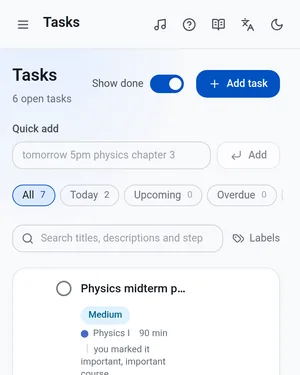
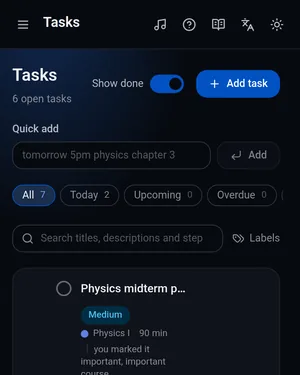
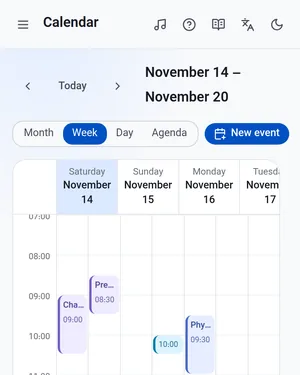
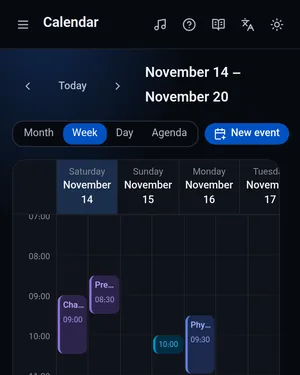
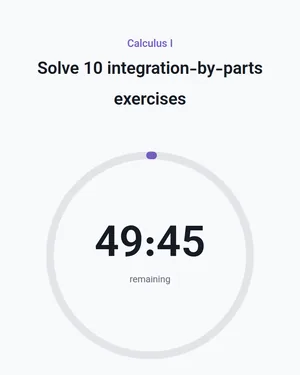
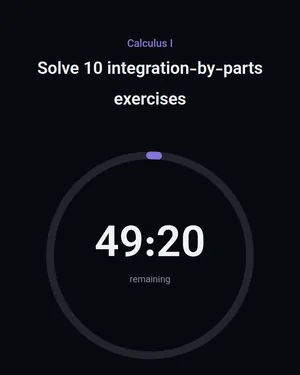
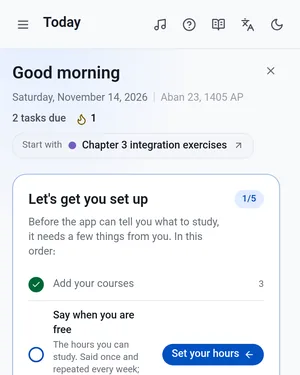
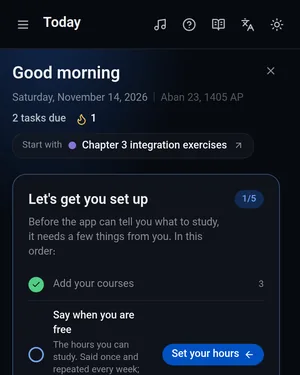
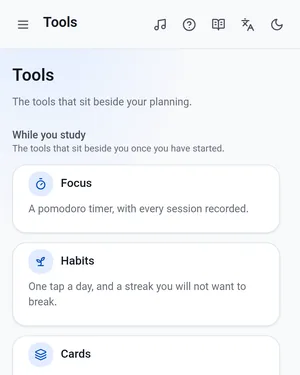
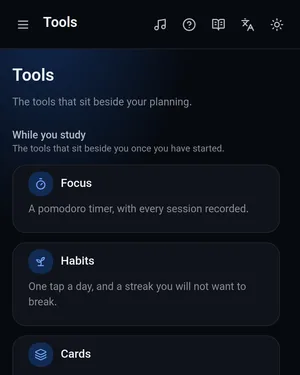
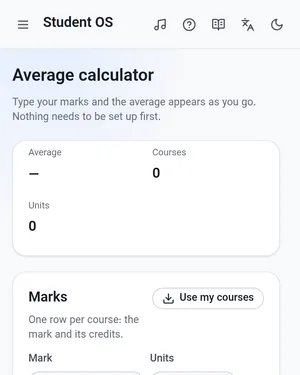
Real screens of the planner — today, timetable, focus and your average.
Not an imaginary fourteen-hour day. A week with lectures, assignments, one exam and a few free hours.
Saturday
Physics and maths lectures
Physics ch. 4, 50 minutes
Sunday
Maths assignment handed in
Review chapter 3
Monday
Lab report
20 questions
Tuesday
Most free time this week
Chapter 4 — the heaviest topic
Wednesday
Pull chapters 1–3 together
Thursday
Physics 2 midterm
Friday
Day off — nothing gets scheduled on it
Weekly review, 20 min
Everything the app does, grouped. Whatever you came looking for is probably here.
What you enter once, and everything else works from.
Create the term; add courses with a name, code, credit count and lecturer.
Each course's sessions sit on the week. If two classes overlap it says so on the spot.
Mark a class that did not happen and it leaves that week's plan.
Give each course a weight; it feeds task priority and the study plan.
Kept with your account
Sign in from any computer and it is all there.
Always yours to take
In any browser
Your laptop, the home computer or one at the library — sign in and carry on where you left off.
Time starts when you do
A plan's days start the first time you open the planner, not the day you pay. Renewing adds onto the end, so no paid day is lost.
Expiry ≠ losing your work
If you do not renew, the planner closes until you do. Nothing is deleted: your courses and statistics wait for you, and you can download them from your account.
You buy it once and it is yours for the length you chose. No auto-renewal, no monthly deduction.
Was 539,000 toman15% off
459,000toman
153,000 toman a month
Every feature, in any browser
ChooseWas 897,000 toman15% off
759,000toman
126,500 toman a month
17% less per month
Every feature, in any browser
ChooseWas 1,508,000 toman15% off
1,279,000toman
106,583 toman a month
30% less per month
Every feature, in any browser
ChooseWas 2,628,000 toman15% off
2,229,000toman
92,875 toman a month
39% less per month
Every feature, in any browser
Choose🔥 StudentOS Special Sale | 20% OFF
15% off every plan
Sale ends in

5% of every sale
5%
5% of every sale goes to Mahak, supporting children with cancer and their families.
More about MahakBoth. The first time you open it, it asks whether you are a pupil or a student, and the words change from there — نوبت, year and stream for one, term and credits for the other. You can switch it in Settings whenever you like.
A to-do app keeps the list you wrote. This one knows which exam is close, which of its topics you are weakest in, how much free time you actually have and when you last reviewed it — and picks what to study now from those. There is a list too, but the list is not the point.
Yes — it runs in your browser, so it needs a connection. Your plan is kept with your account, so changing computers loses nothing.
Any up-to-date web browser. There is nothing to install.
Nothing to do: sign in on the new one and everything is there.
In your account: the days left and the end date, at the top of the page.
Press “Forgot your password?” on the sign-in page; you get a one-time code and set a new password.
No. The planner closes until you renew, but nothing is deleted — and you can still download everything from your account.
The feature pages, screenshots and help guides show everything the planner does — and say what it does not do yet. Creating an account is free; the planner itself opens with a subscription, and whatever you make in it stays yours to download from My data whenever you like.
Honestly, before you buy:
If one of these is essential for you, better to know now than after buying. The feature pages and the help guides show exactly what it does and what it does not.
Compare it with other ways to planBlog
We write about planning, exams and the konkur — practical and to the point, even before you create an account.

Most plans are abandoned by the third day — not because their owners are lazy, but because they were never written for a real person. Here is how to build a plan that fits the time you really have and does not break when you fall behind.
5 min read
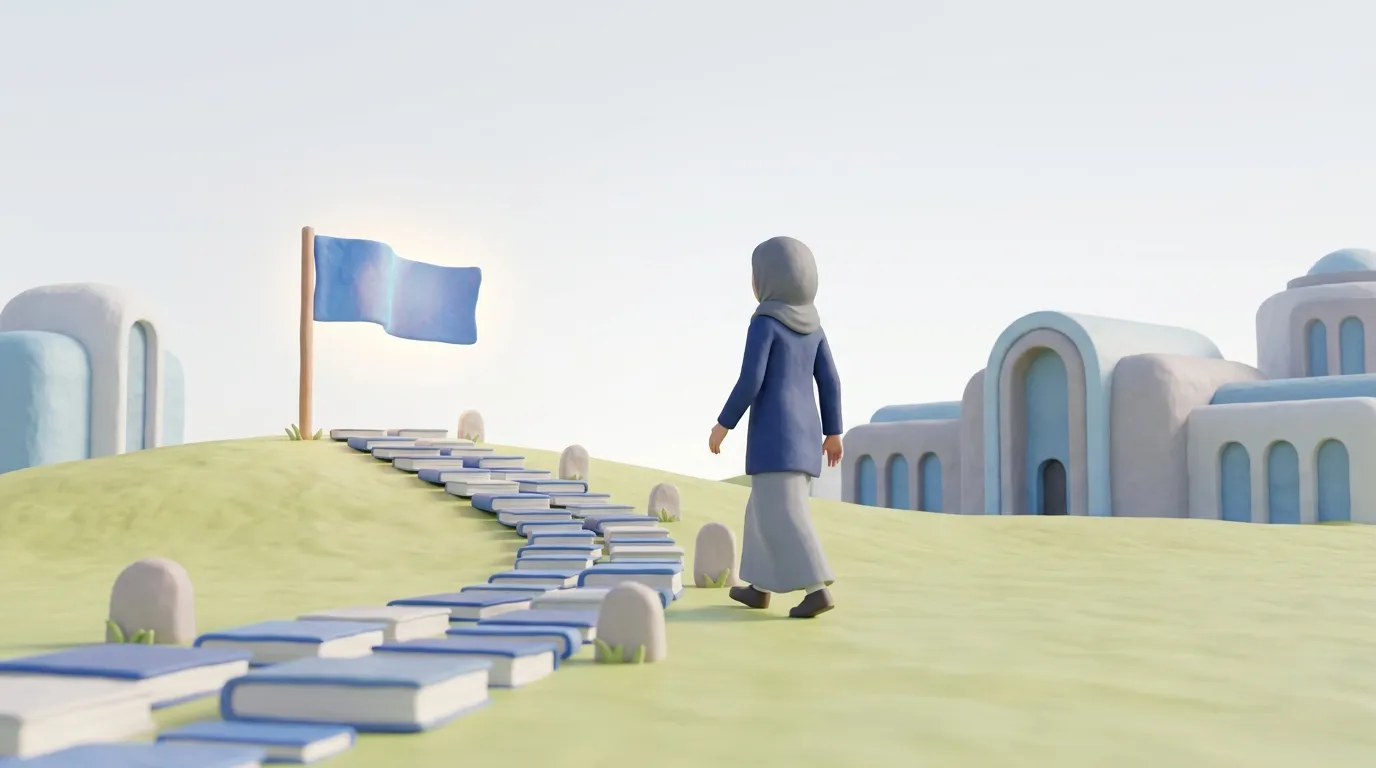
The Konkur is a marathon, not a sprint. Here is how to start from where you are now, divide the year into clear stages, and build a plan that fits around your mock exams and school.
4 min read

A mock exam is not just a number on a report card; it is the map of your next two weeks. Here is how to sort your mistakes after each exam and draw a more precise plan out of them.
4 min read
You choose how long — every feature is in all of them.
Notebooks, pens, and the things that sit beside the app.